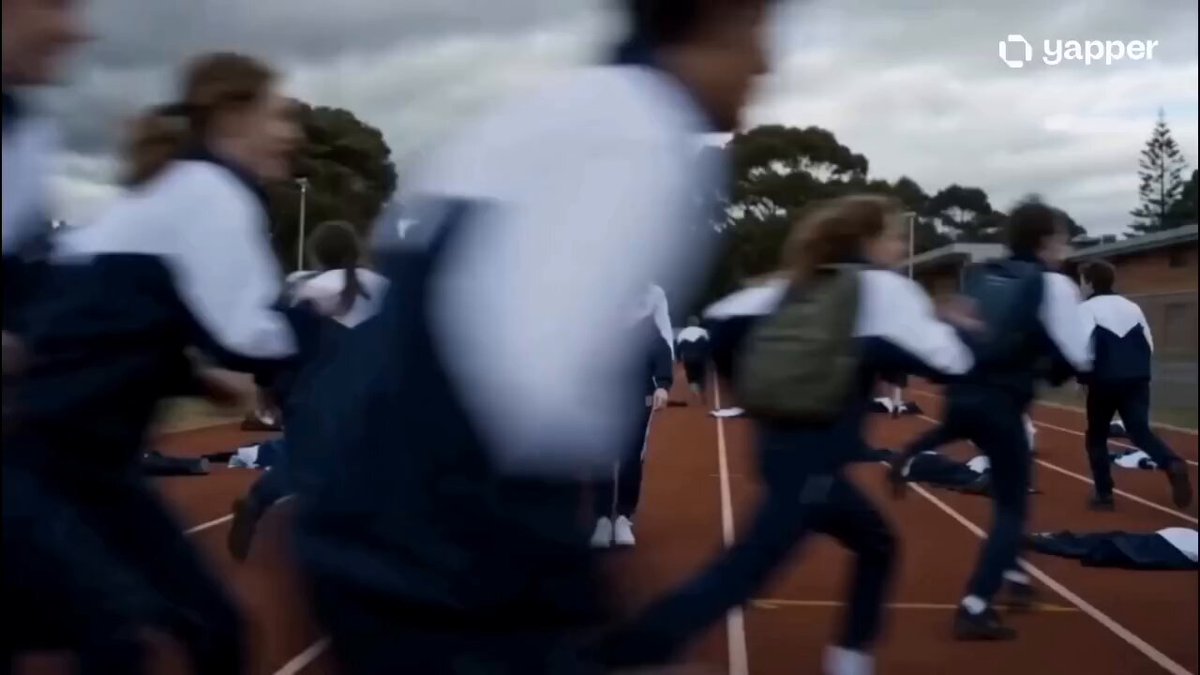
Transformed result
Mech Armor
Mechanical plates assemble around the subject into a finished armored form.
Use the AI Transformation Video Generator to change a person, creature, product, vehicle, or object into a new form. Pick a preset, add an image or supported frames, and edit the transformation prompt before generating.
Open a style to compare its examples, then use the preset and rewrite any part of the prompt.
Each preset combines reviewed examples with an editable prompt. Styles with more than one example can be switched inside the preview.
Mechanical plates assemble around the subject into a finished armored form.
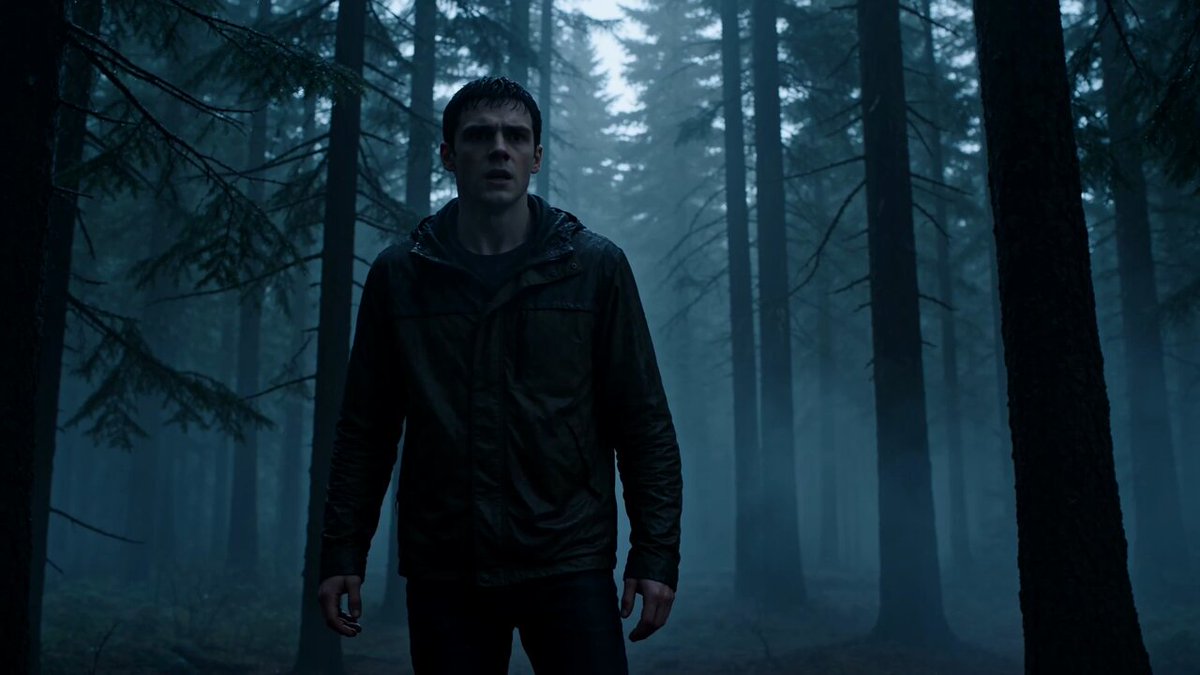
An anatomical creature change with fur, claws, and a final reveal.
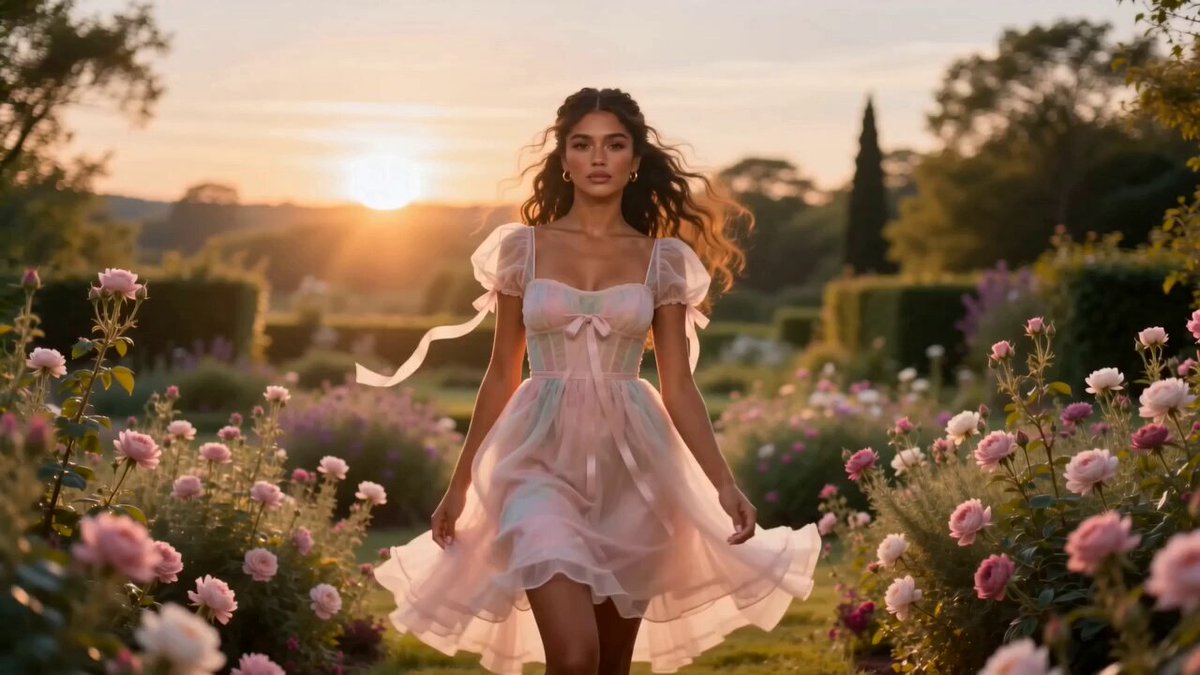
Wardrobe, styling, and mood evolve while the subject keeps the same identity.
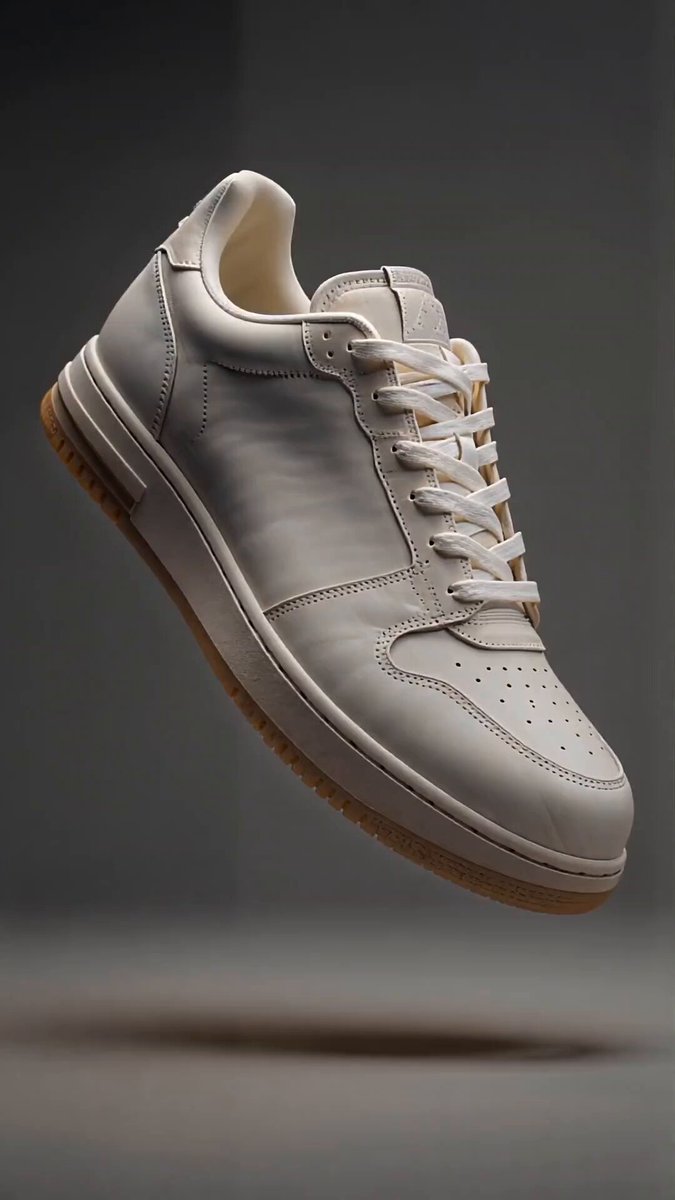
The subject keeps its shape while its surface flows through new materials.
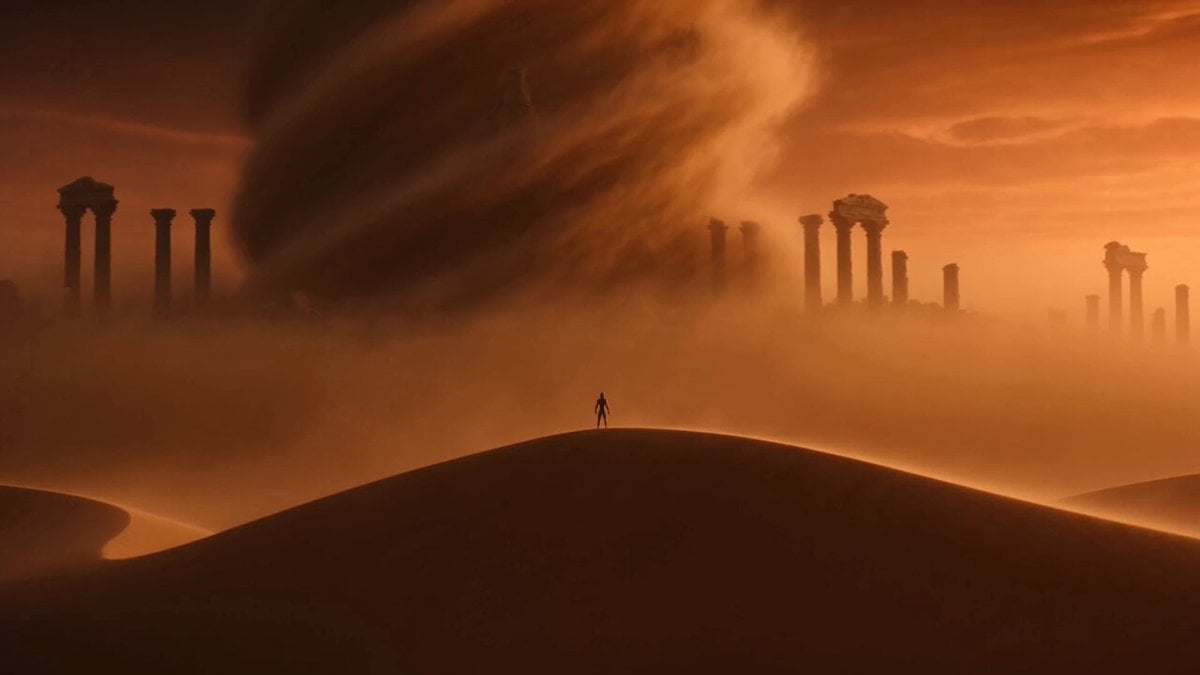
Sand, fire, or another element overtakes the subject and becomes its new form.
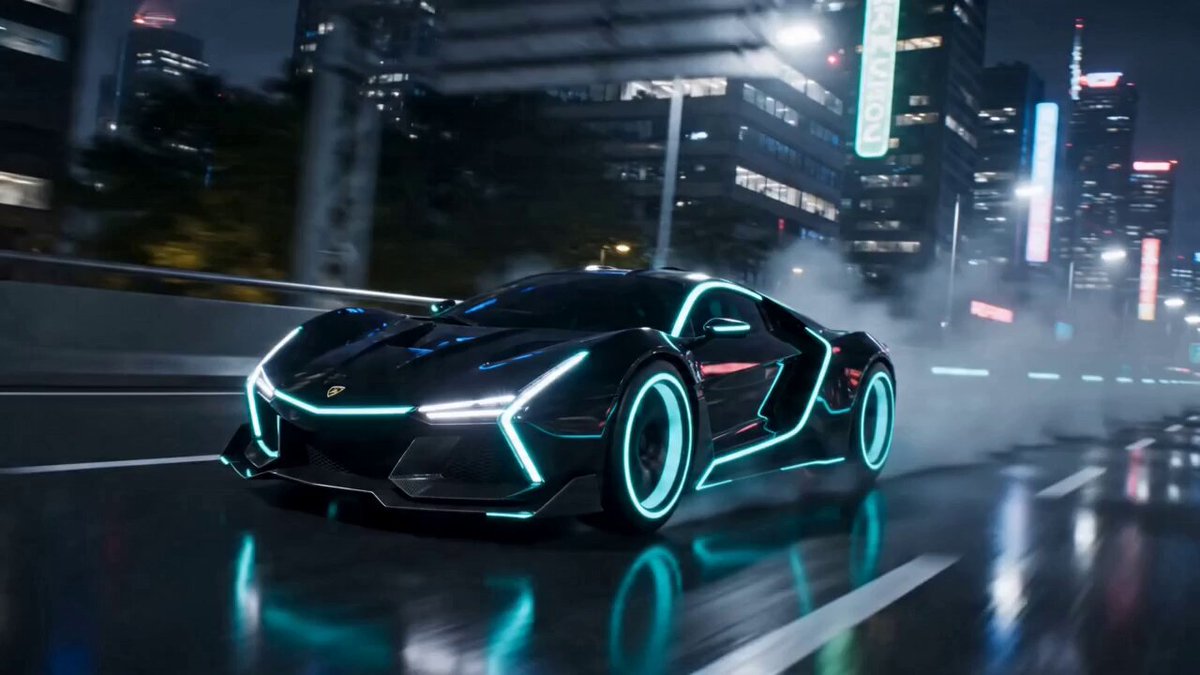
Vehicle panels unfold and reassemble into a moving humanoid robot.
A transformation needs a readable starting form. Choose a frame where the main person, object, animal, or vehicle is easy to separate from the background. If you add an end frame, keep the composition close enough for the model to connect both forms.
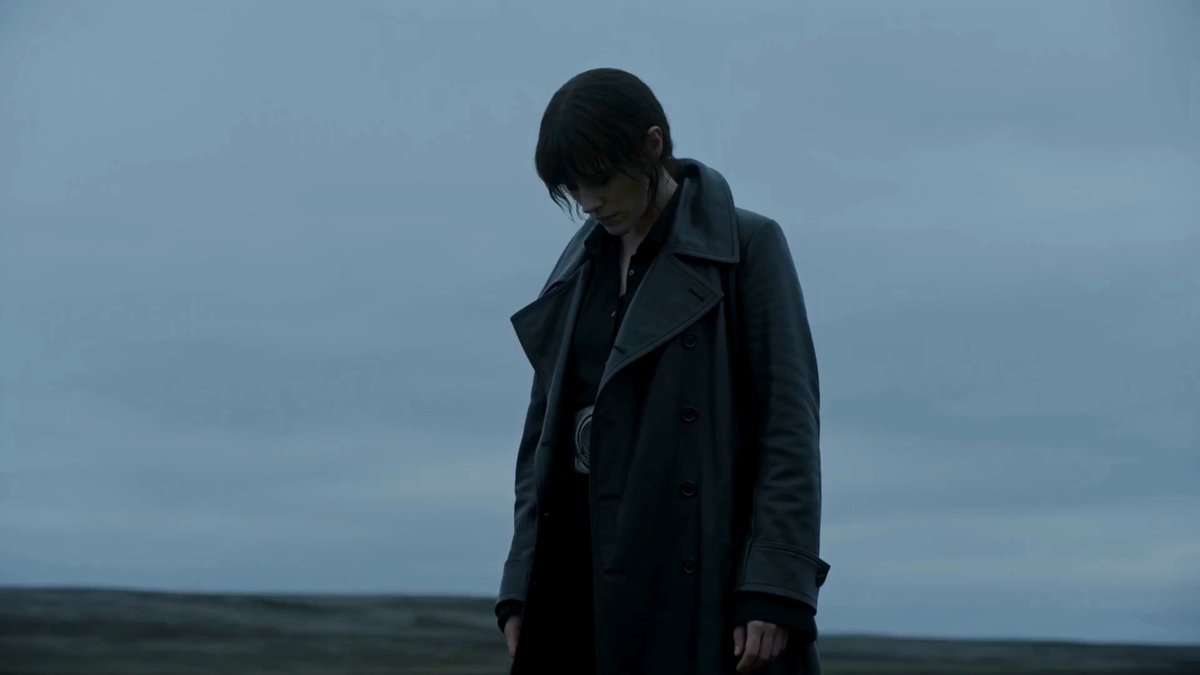 Starting form
Start from text, add one subject image, or use start and end frames when your selected model supports them.
Select a transformation preset, compare its examples, then edit the final form, sequence, camera, and settings.
Generate the clip, review how the form changes, and refine the prompt if the transition path or final reveal needs work.
Each preset fills only the prompt, so your current model and output settings stay in place. Edit the final form, material, transformation speed, or camera before generating. The prompt guides the change; it does not guarantee an exact frame-by-frame morph or preserve every small detail.
Use these as complete starting prompts, or borrow their transformation order, camera, and final reveal.
A figure steps through a fractured digital surface while clothes and skin flicker between materials.
Use the uploaded image or frames as the visual reference. Keep the subject recognizable. Fine digital fractures spread across the scene, opening a bright seam behind the subject. As the subject steps forward, clothing and skin briefly flicker through glass, chrome, ink, and clean monochrome fabric before settling into one polished final form. Use a slow pullback, controlled glitch artifacts, stable facial identity, and no unrelated cuts.
A beat-led outfit and lighting change that keeps the same person at the center.
Use the uploaded image or frames as the visual reference. Preserve the same face, hair, and body proportions. Begin in a softly lit everyday room with simple clothes. On the beat, fabric, accessories, posture, and lighting flow into a bold editorial look while the subject walks toward the camera. Finish on a confident full-body pose with natural cloth motion and a clean, continuous transformation.
A restrained human-to-creature reveal under cold moonlight and drifting fog.
Use the uploaded image or frames as the visual reference. Preserve the subject's identity at the beginning. In a foggy moonlit clearing, the transformation starts in the hands and eyes, then moves through the shoulders, jaw, ears, and skin. Let fur and claws emerge gradually while the camera makes one slow orbit. End with the completed creature holding a readable silhouette against the moon, with coherent anatomy and no cuts.
Add an image or supported frames, choose a transformation style, and generate from the prefilled prompt. You can change the subject, final form, material, camera, and pacing first.
No. Create mode keeps the generator's normal input options. You can start from one image, use start and end frames when the selected model supports them, or generate from text.
A clear subject with visible edges usually gives the model a stronger starting shape. For people, avoid hidden hands and faces. For products or vehicles, keep the full silhouette in frame.
Yes. The preset is editable. Describe the destination form, which parts change first, the material behavior, the camera, and the final pose or reveal.
Use start and end frames with a compatible model when you need stronger visual direction for both ends. The AI still creates the intermediate motion, so exact geometry between them can vary.
This page changes a subject's visible form within a generated shot. For ordinary edits between separate scenes, use a video editor or a transition workflow instead.
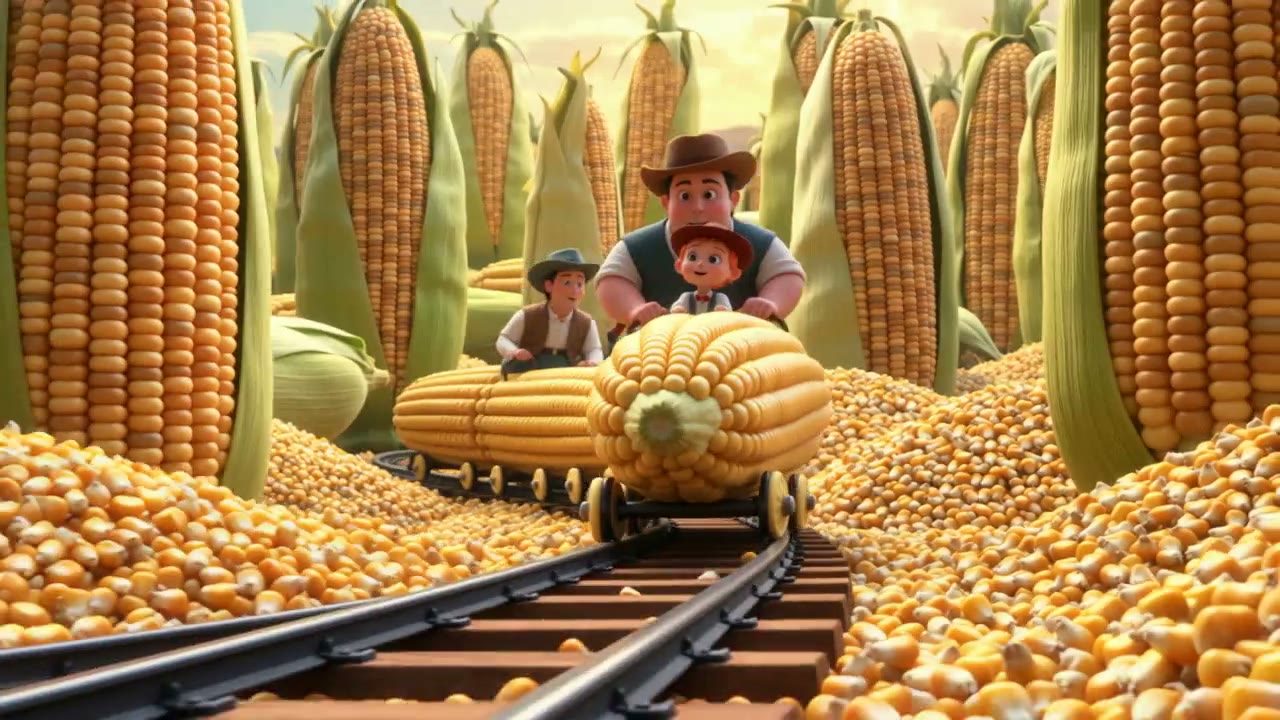 AI animation generatorAnimate a drawing or character in a new generated scene.
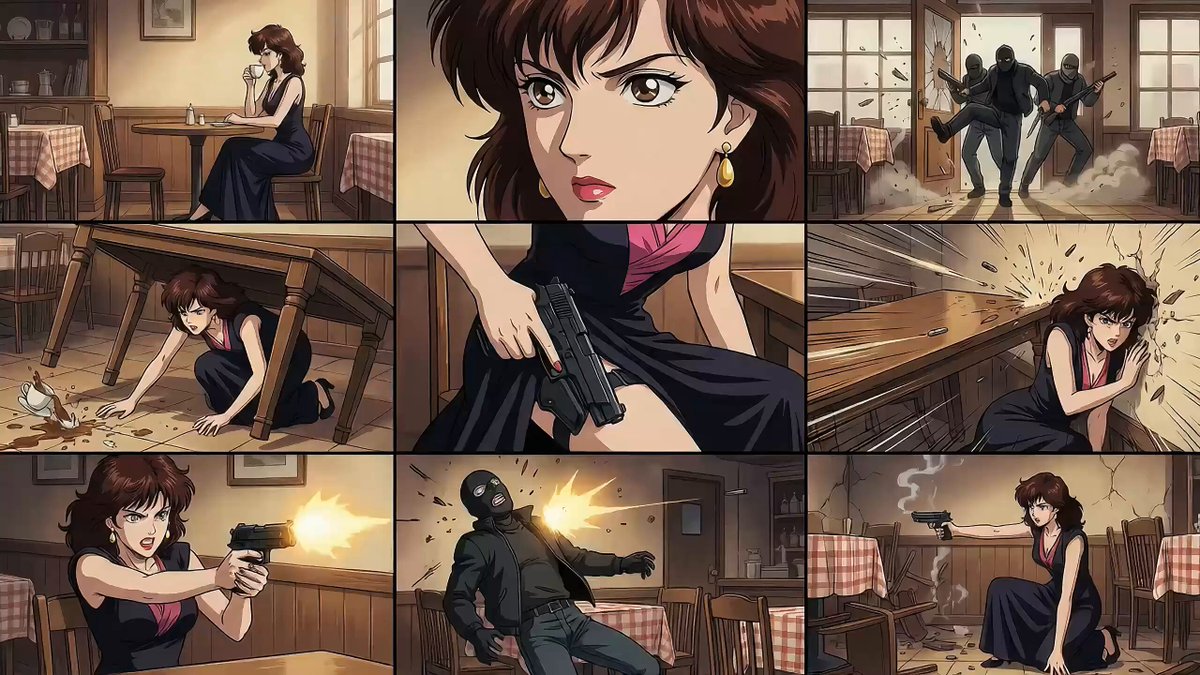 Seedance video promptsExplore prompts for camera movement, timing, and visual effects.
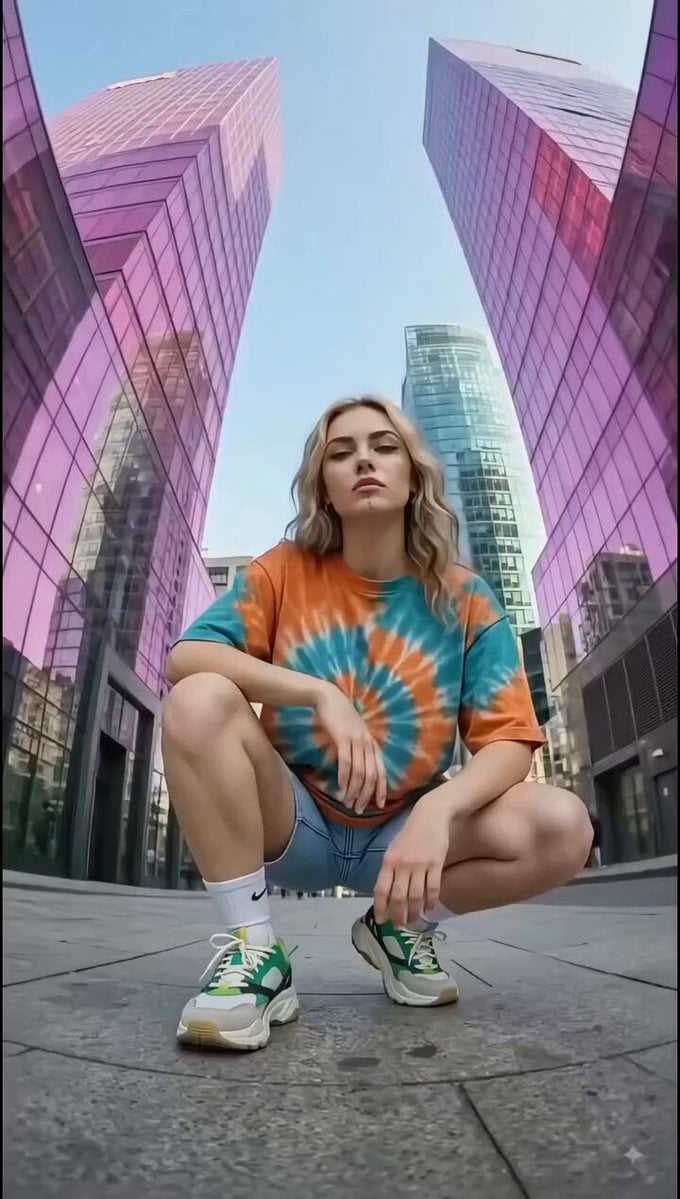 Text to video generatorCreate a transformation scene directly from a written idea.
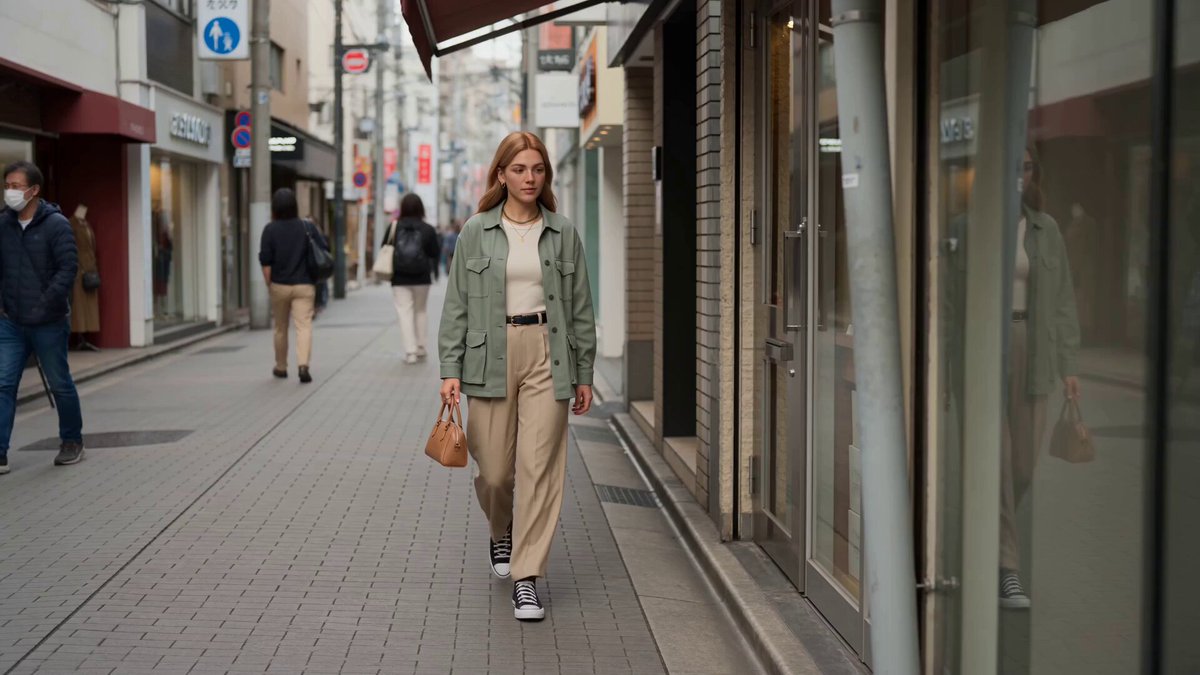 Reference to videoGuide a new shot with character, scene, style, or motion references.
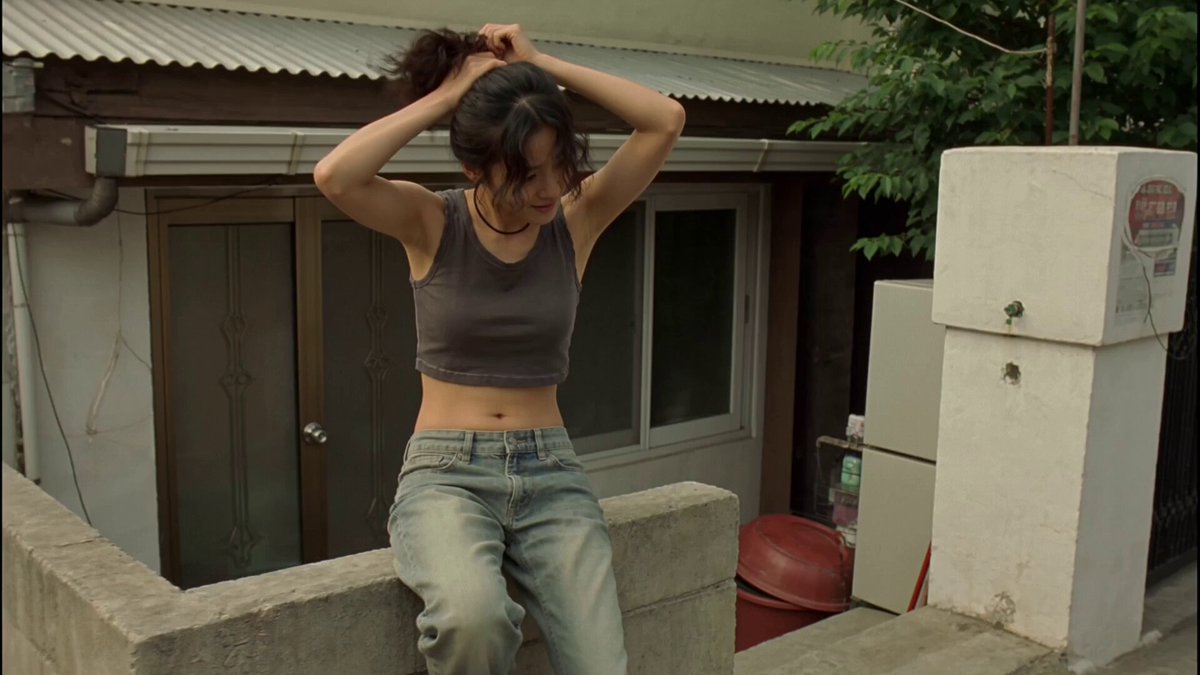 Video to video generatorRestyle an existing clip while keeping its underlying motion.
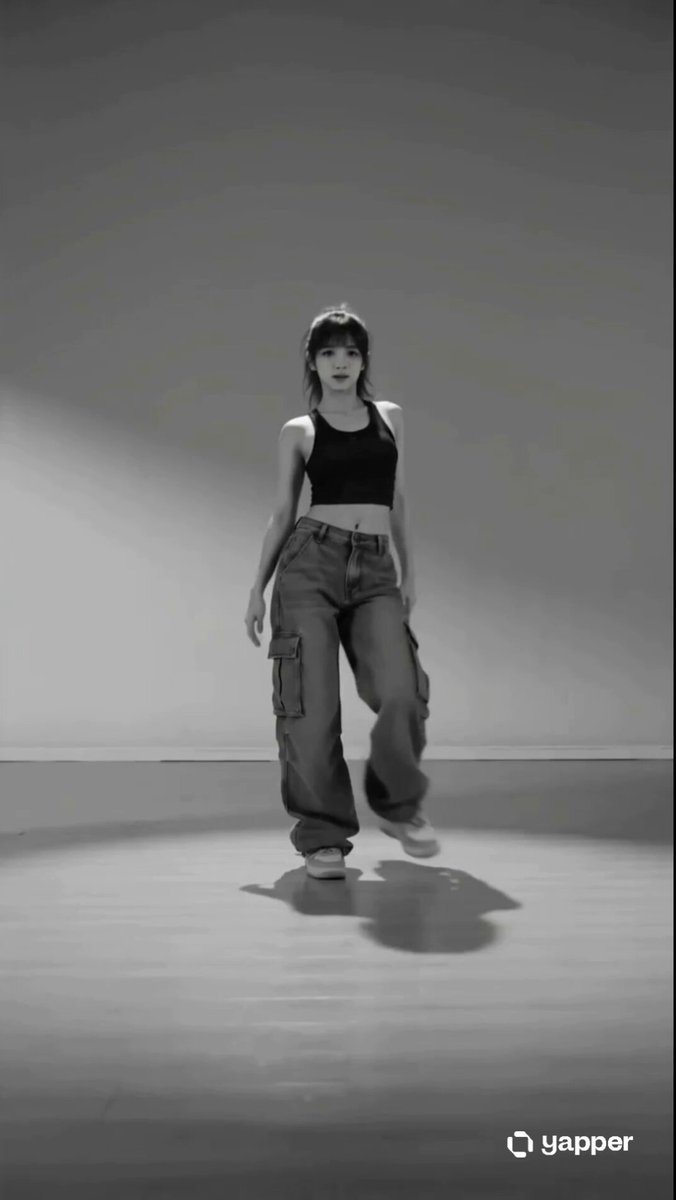 AI dance video generatorTurn a person photo into a short prompted dance video.
Choose a transformation style, add your visual reference, then edit the prompt and settings before you generate.
Generate transformation video