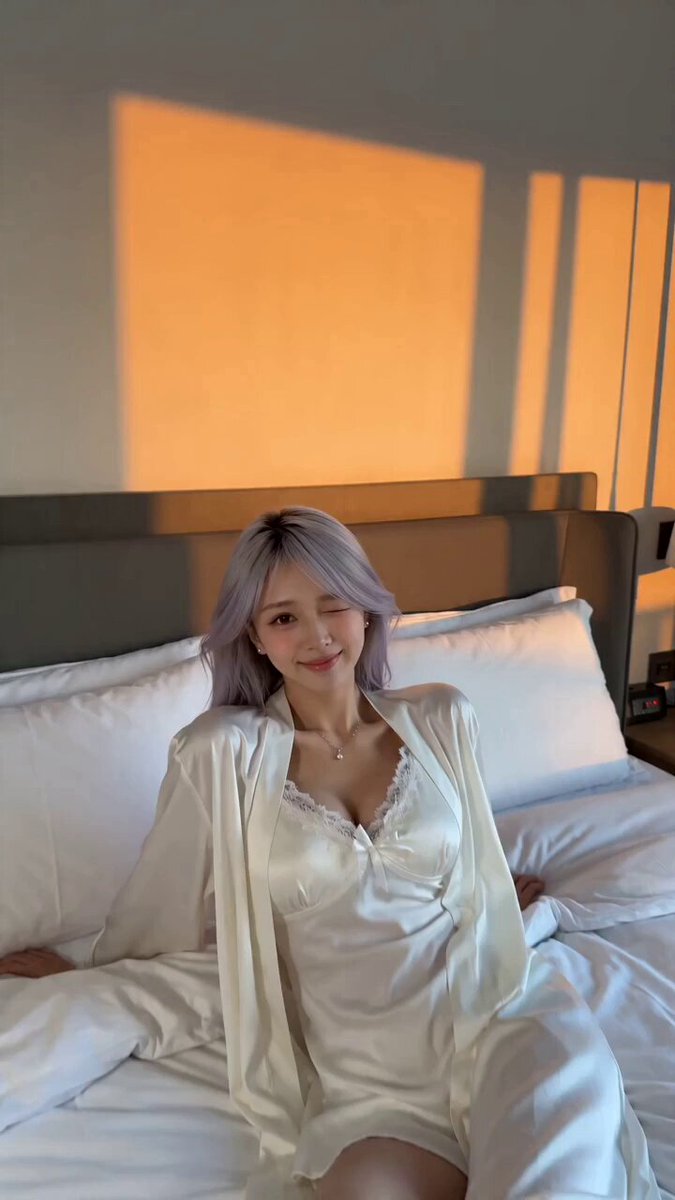
Generated transition
Match Cut
Connect two scenes through a shared shape, motion, or composition.
Use the AI video transition generator to connect images and scenes with match cuts, wipes, morphs, glitches, spins, and continuous selfie moves. Pick a transition style, edit the prompt, and generate the motion between your visual anchors.
Examples show previous AI-generated results. Your source images, prompt, model, aspect ratio, and duration affect the final motion.
Choose a transition preset built around a recognizable editing technique. Each style fills the prompt with its own motion language, and you can rewrite any detail before generating.
Connect two scenes through a shared shape, motion, or composition.
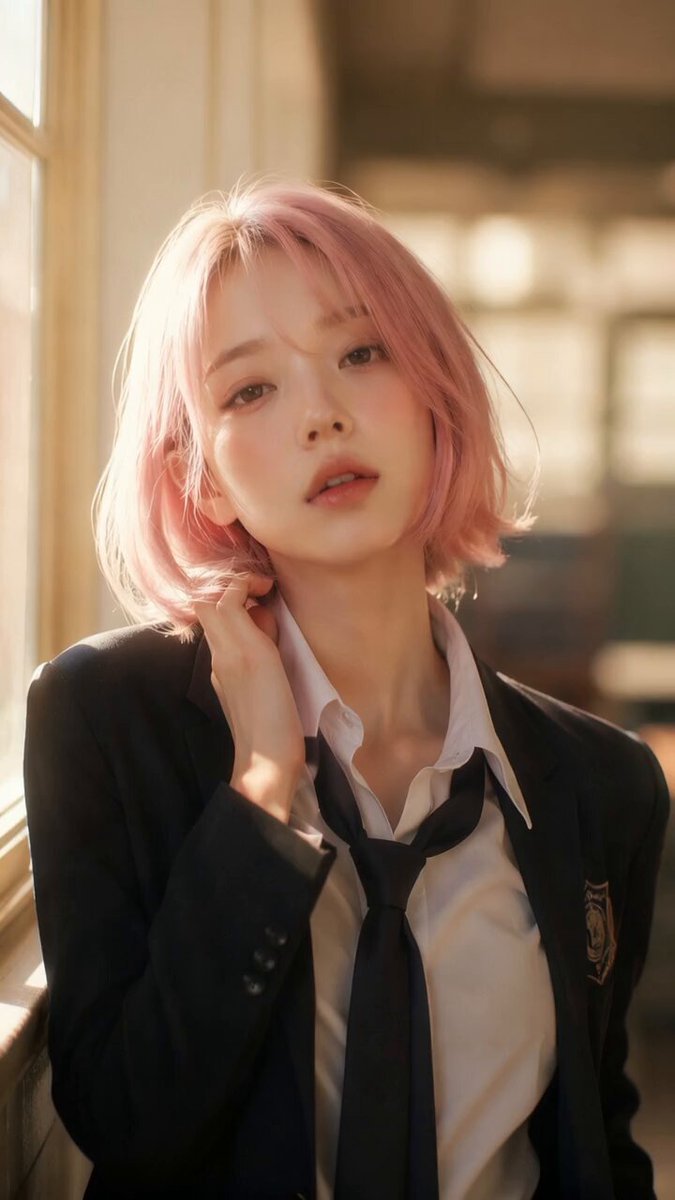
Let a hand, object, or surface cover the lens and reveal a new scene.
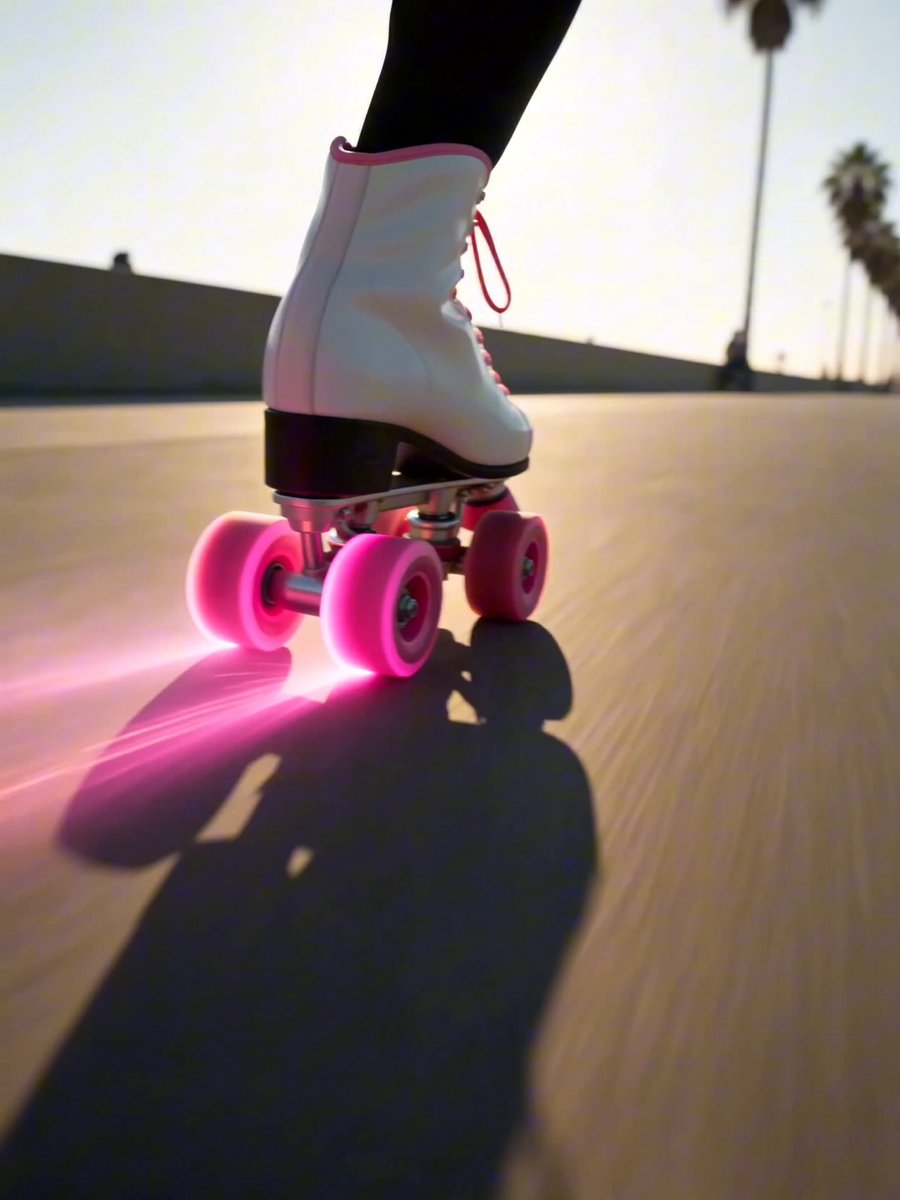
Use a brief digital break to snap between energetic scenes.
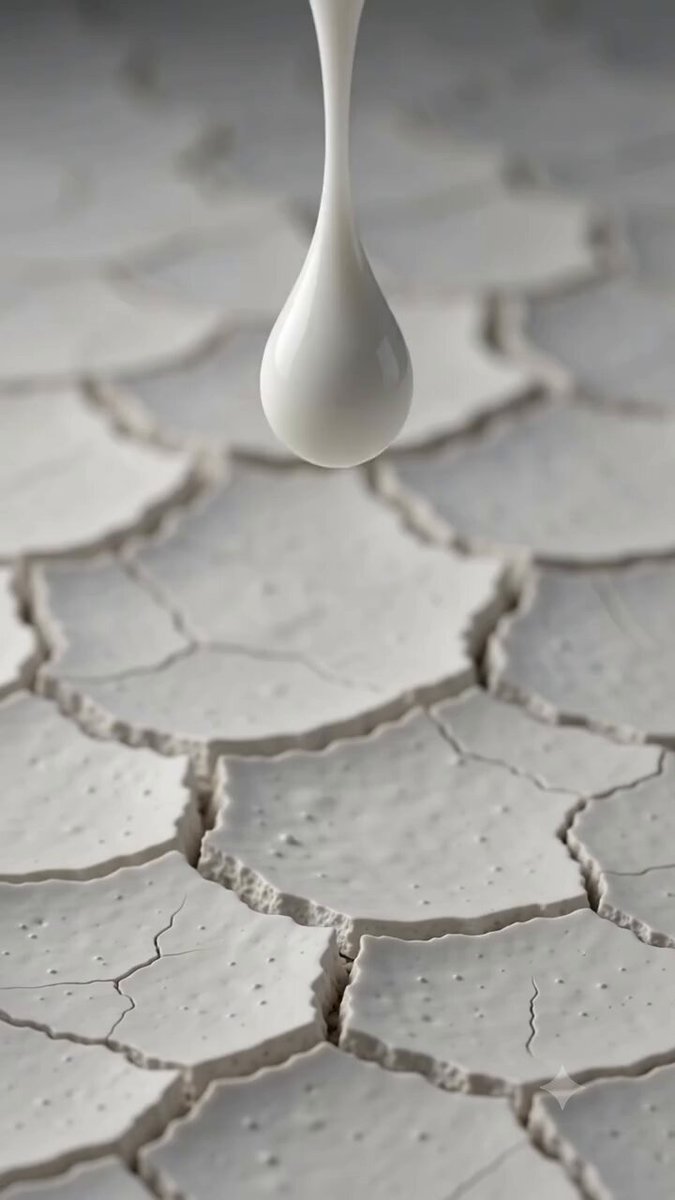
Transform materials and shapes continuously into the next subject or setting.
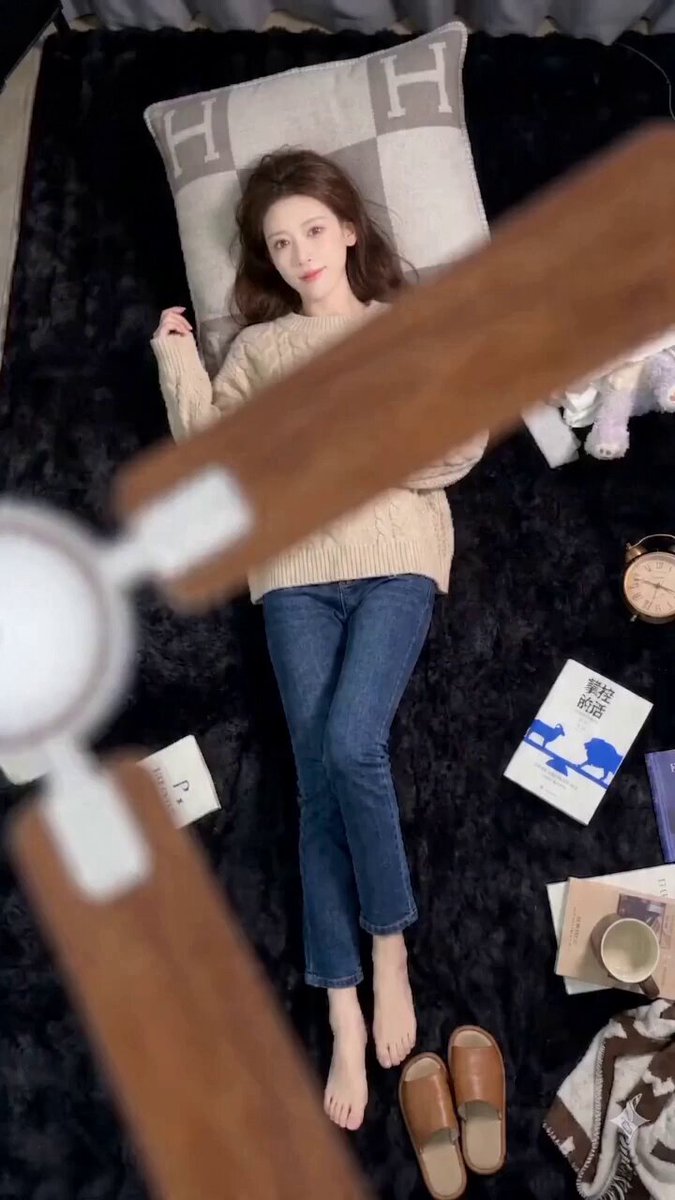
Change a look behind a moving foreground object while the pose stays aligned.
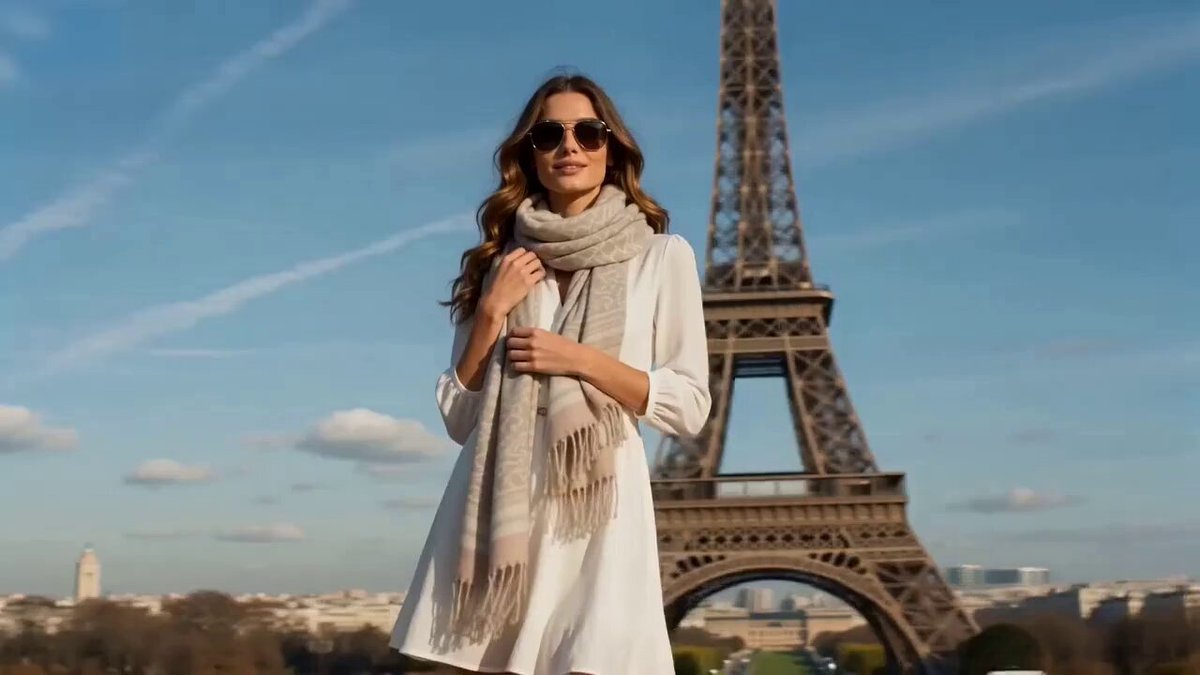
Carry a continuous turn across changing outfits, locations, or moments.
The AI video transition generator works best when the source and destination share a visual relationship. A similar subject position, silhouette, dominant shape, or camera direction gives the model a clear path between scenes.
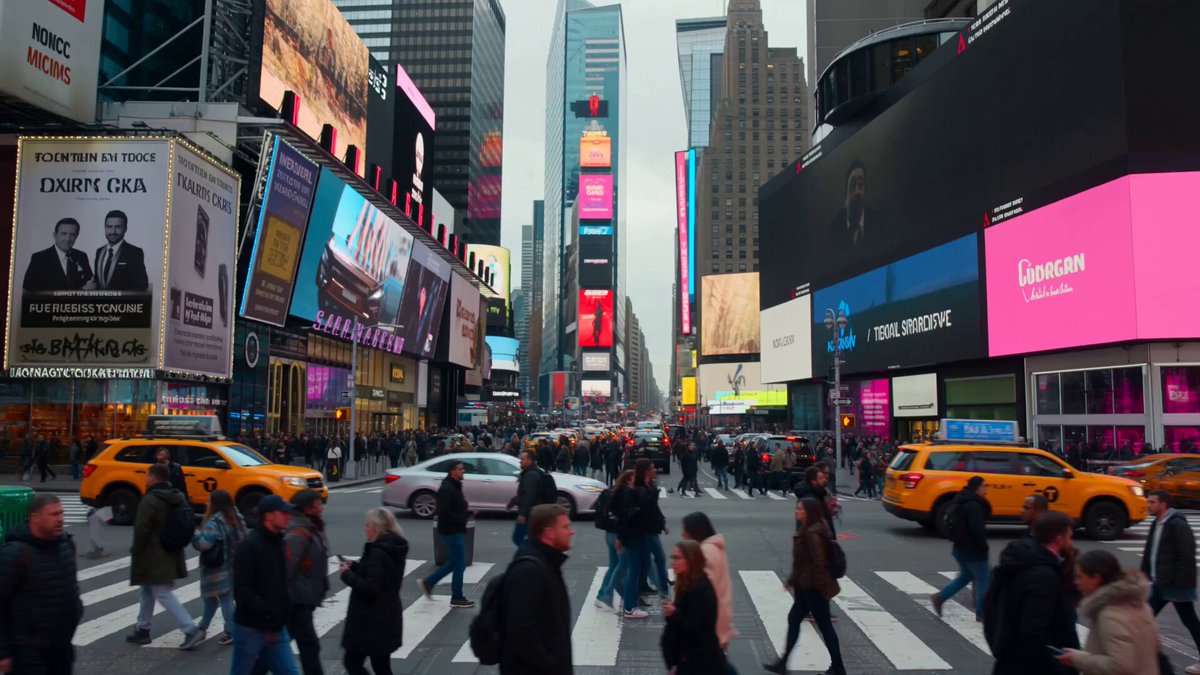 Visual anchor
Upload a clear start image. When the selected model supports start and end frames, add an end frame to define the destination scene.
Select Match Cut, Wipe, Glitch, Morph, Outfit, Spin, or Selfie Transition. The preset fills the prompt while leaving the model and output controls available.
Generate the video, review the bridge between scenes, then adjust the prompt, duration, framing, or model when the reveal needs a cleaner rhythm.
Describe the transition trigger, motion direction, cover object, camera path, timing, and final reveal. The selected preset supplies a useful structure, while the editable prompt controls the creative details.
Start with one of these transition structures, then replace the subject, setting, motion trigger, and destination with your own idea.
A rising camera move connects a starlit portrait to a spacecraft view of Earth.
Begin on a quiet side profile looking up at a dense night sky. Lift the camera smoothly as the stars thin into space and the curve of Earth enters the frame, then let the same profile become a silhouette inside a spacecraft window. Preserve the viewing angle, upward gaze, and slow continuous rise.
A macro camera move turns the spiral of a record into a sandstone landscape.
Begin with a macro shot of a needle moving through a spinning vinyl groove. Push into the groove until its curved ridges fill the frame, then transform those ridges into a vast sandstone canyon while keeping the same circular motion, warm light, and camera direction.
Fast forward motion tears one environment into the next without stopping.
Fly forward continuously through a desert as the dunes split into layered sheets and reveal a stormy ocean underneath. Keep the camera speed and horizon aligned while water, city structures, and a rocky cavern tear into one another in a controlled surreal transition.
An AI video transition generator creates motion that connects a starting visual to a new scene, look, or composition. It can simulate editing techniques such as match cuts, wipes, morphs, glitches, and spin transitions from a prompt and supported image inputs.
No. You can start from one image and describe the destination in the prompt. If the selected model supports start and end frames, adding both gives the model clearer endpoints. The available upload slots follow the model you choose.
Frames with a clear subject, similar composition, matching motion direction, and recognizable shared shapes usually connect more smoothly. Large differences can still work, but the prompt should explain the visual bridge.
Yes. Selecting a preset fills the prompt only. You can change the subject, trigger, camera move, speed, scene, or reveal, and you can choose the model and output settings separately.
The prompt can ask the model to preserve identity, silhouette, colors, and product details. Clear images and aligned framing help, but complex morphs and large viewpoint changes can still alter fine details.
The frames act as visual anchors when the chosen model supports them. The AI invents the motion between those anchors, so object paths, intermediate shapes, timing, and small visual details can vary between generations.
 Start and End Frame VideoDefine the opening and closing frames for a guided video sequence.
 Image to VideoAnimate a still image with a fully editable motion prompt.
 AI Transformation Video GeneratorTurn a subject into a new form with transformation presets.
 AI Camera Orbit Video GeneratorCreate circular camera moves around people, products, and scenes.
 AI Catwalk Video GeneratorGenerate runway walks with selectable fashion styles.
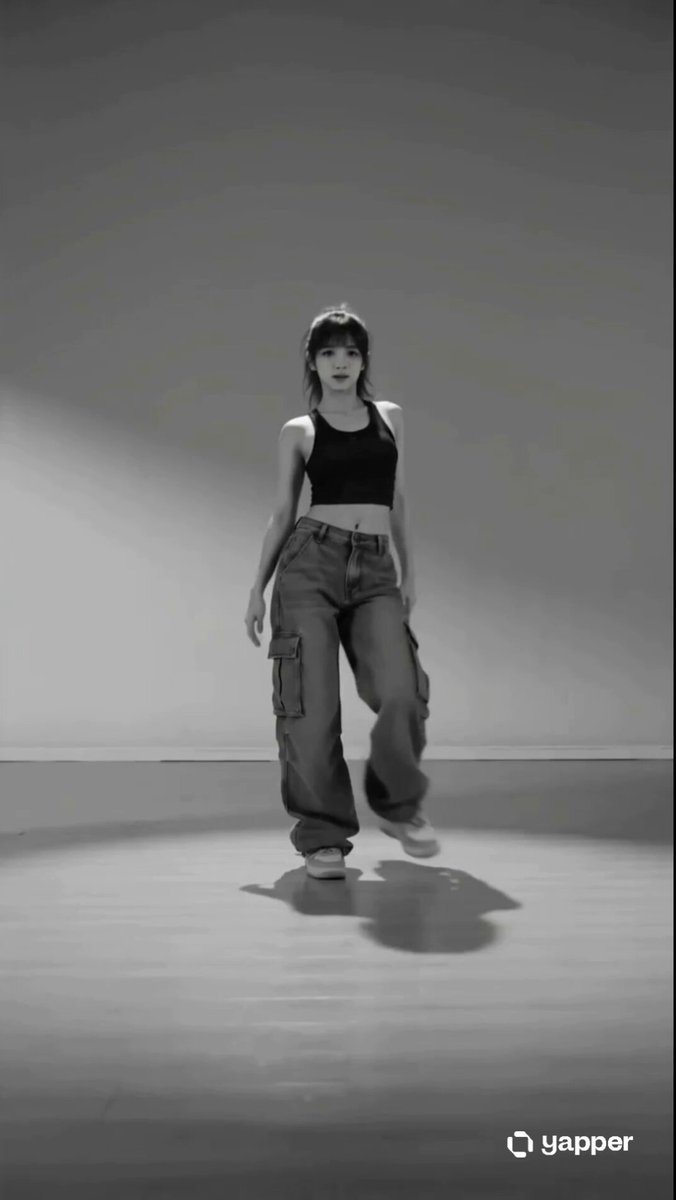 AI Dance Video GeneratorAnimate a person with dance styles and editable choreography prompts.
Choose a transition style, add a visual anchor, and edit the prompt to connect your scenes with a deliberate motion and reveal.
Generate transition