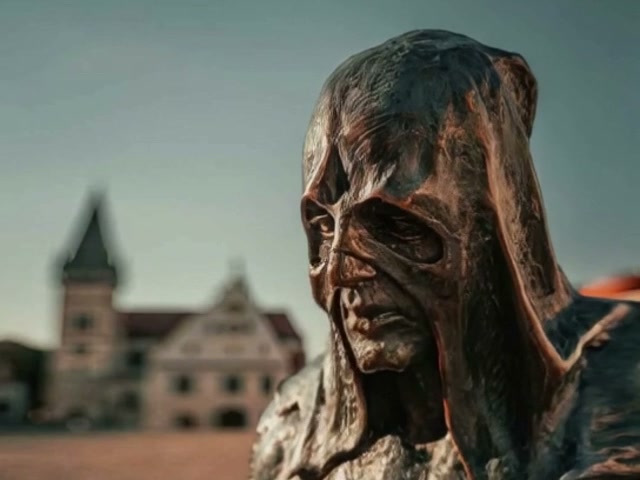
Generated effect
Portrait Melt
Let a portrait soften and flow downward while the setting remains stable.
The AI Melt Effect Video Generator turns a person, character, food, animal, or object into a progressive liquid-like melting animation.
Examples show the motion language of each preset. Your result follows your uploaded material and edited prompt.
Compare six melting effect styles and choose how the subject softens, drips, flows, and gathers into a final pool.
Let a portrait soften and flow downward while the setting remains stable.
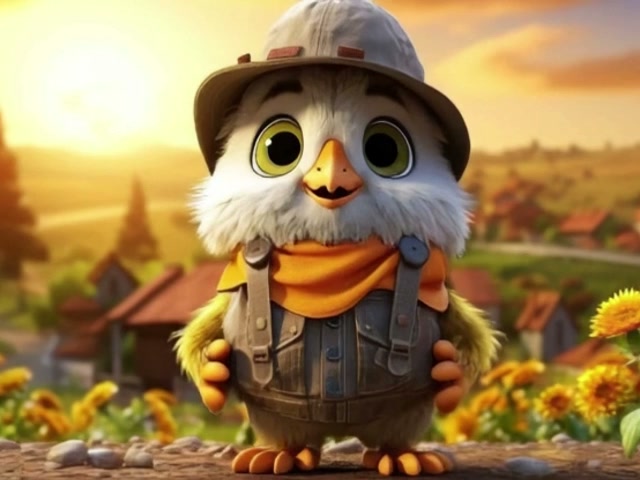
Turn a stylized character into a colorful, playful puddle.
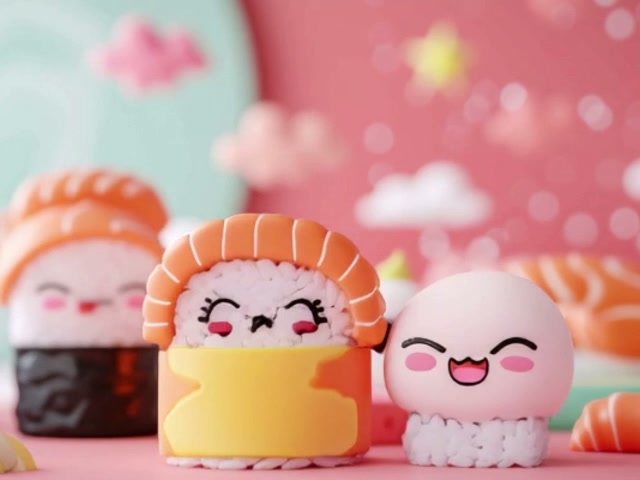
Transform food characters into glossy flowing textures.
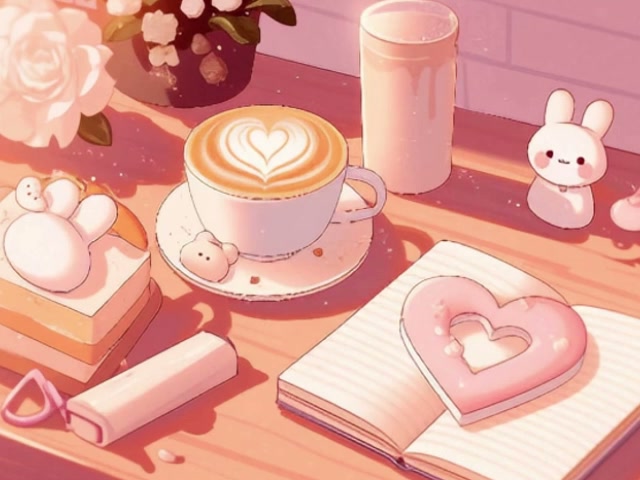
Melt a group of tabletop objects together into one connected pool.
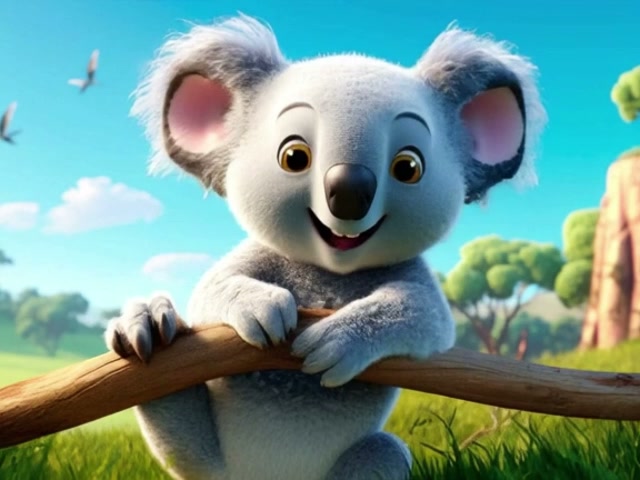
Let a stylized animal drip like warm wax while its setting stays intact.
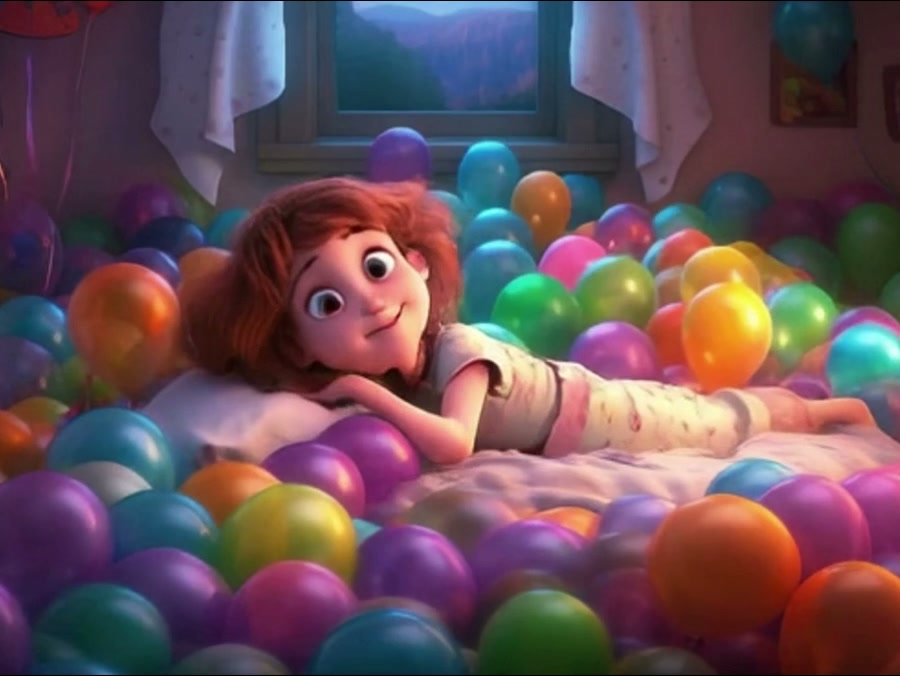
Turn a full character into a thick flowing puddle in one progressive motion.
A distinct subject and stable background make it easier to see where the original form ends and the melting motion begins.
A distinct subject and stable background make it easier to see where the original form ends and the melting motion begins.
Compare the reviewed ai melt examples and select the result that fits your idea.
Adjust the prefilled prompt and any available generator controls, then generate your video.
The selected preset fills only the prompt. You can change the material, drip speed, direction, viscosity, color mixing, and final puddle.
Start with one of these ai melt prompts or write your own variation.
Melt a portrait into slow rounded wax drips.
Preserve the portrait and background at the start. Gradually soften the subject into warm wax with rounded drips, folded layers, and a connected pool forming below.
Flow the subject into bright separated color streams.
Keep the starting silhouette recognizable, then melt the subject into thick rainbow-colored streams that remain connected and gather into a glossy multicolor puddle.
Transform an object into reflective flowing metal.
Preserve the object shape initially, then make its surface soften into reflective liquid metal, flow downward in heavy streams, and collect into a mirror-like pool.
Portraits, characters, animals, food, products, and clearly separated objects can all work. Clear edges and stable lighting produce a more readable transformation.
Portrait Melt appears first and is selected by default. You can switch among all six melting styles.
Yes. Edit the prompt to request wax, chocolate, liquid metal, slime, paint, or another flowing material.
No. This effect asks the subject to retain connected volume as it softens, drips, and pools. A dissolve transition simply fades or replaces pixels.
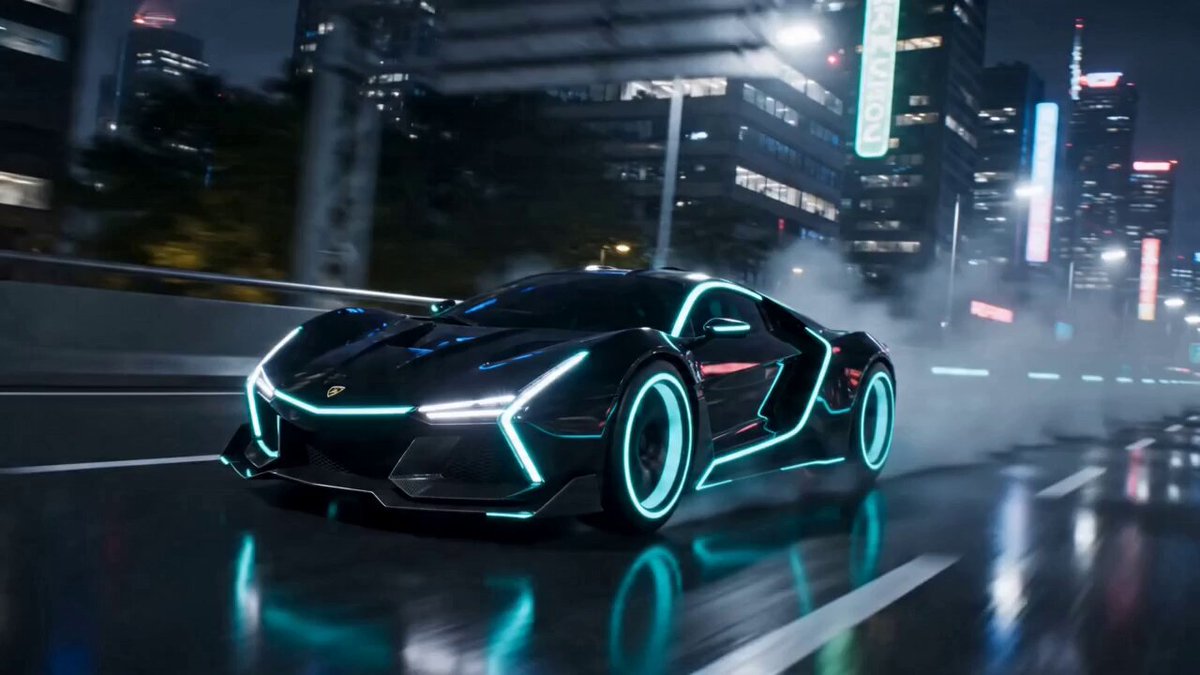 AI TransformationCreate a broader material or character transformation.
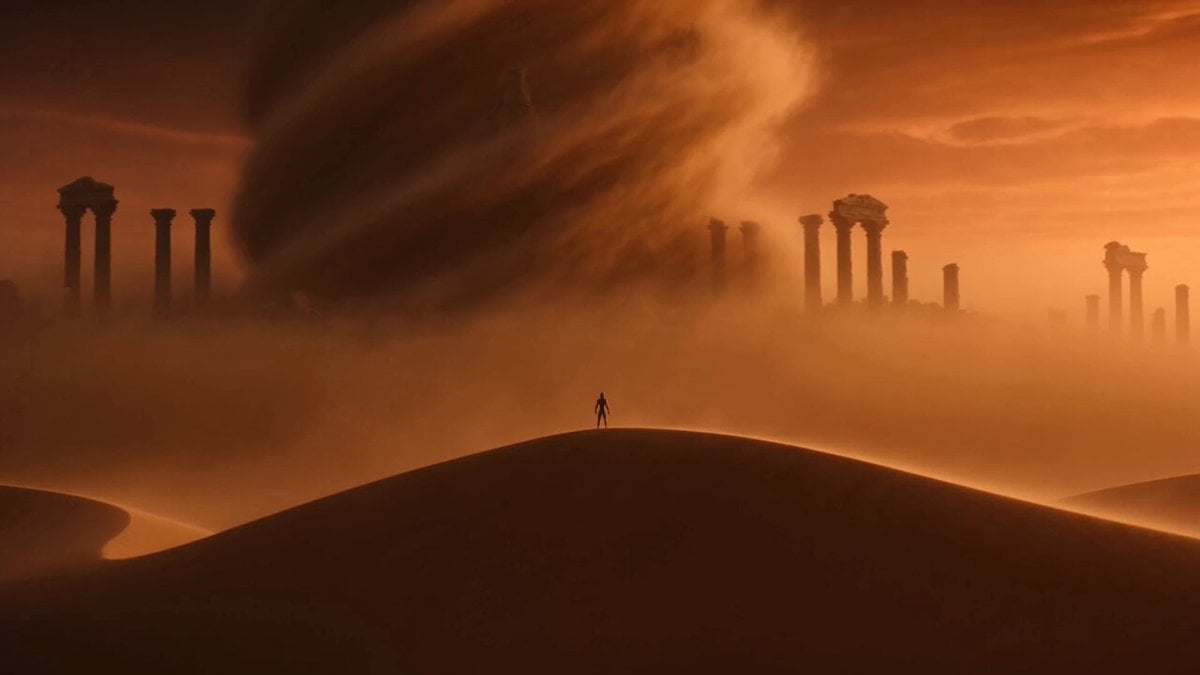 Image to VideoAnimate an image with a custom transformation prompt.
 AI ASMRCreate tactile material motion and sound.
 Video TransitionConnect two visual states with a custom transition.
 Video to VideoApply a new material style to existing footage.
 AI Squish EffectCompress a subject while keeping it solid and playful.
Add an image, choose a melting style, and edit the prompt to control the material and flow.
Generate video