Generated effect
Person Squish
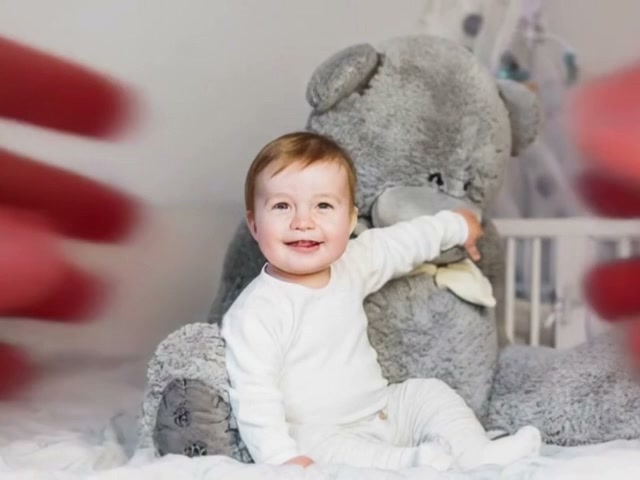
Compress a person into a soft toy-like shape with a gentle rebound.
The AI Squish Effect Video Generator playfully compresses a person, couple, pet, food, or toy into a soft clay-like or plush-like shape.
Examples show the motion language of each preset. Your result follows your uploaded material and edited prompt.
Compare five squish effects and choose how a person, pet, food item, or toy compresses and rebounds.
Compress a person into a soft toy-like shape with a gentle rebound.
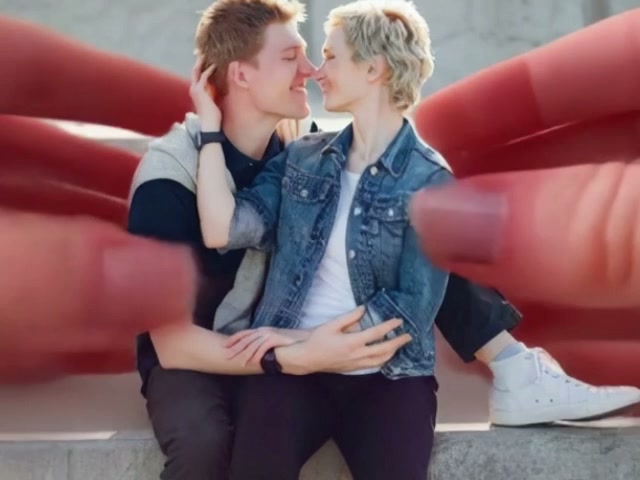
Bring two people together through a playful shared compression.
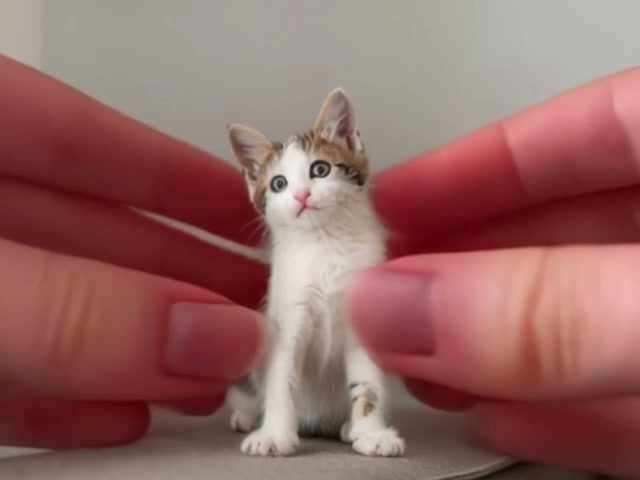
Turn a pet into a soft plush-like ball while keeping its face recognizable.
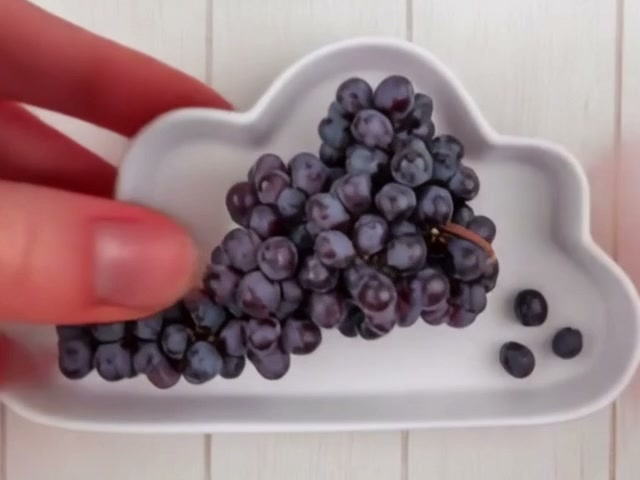
Flatten fruit or food into a tactile, soft-material shape.
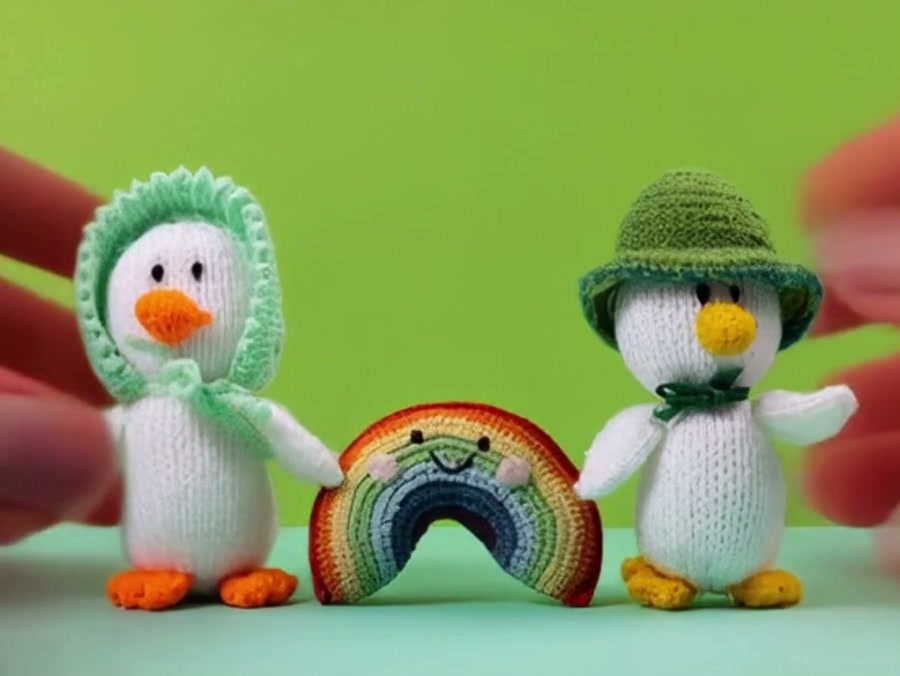
Compress a toy or mascot into a stretchy shape with a playful bounce.
A centered subject with a clear outline gives the compression enough room and helps preserve recognizable colors and features.
A centered subject with a clear outline gives the compression enough room and helps preserve recognizable colors and features.
Compare the reviewed ai squish examples and select the result that fits your idea.
Adjust the prefilled prompt and any available generator controls, then generate your video.
The preset fills only the prompt. You can change the pressing direction, softness, stretch, rebound, hands, material, and final shape.
Start with one of these ai squish prompts or write your own variation.
Compress the subject like soft modeling clay.
Preserve the subject colors and key features. Two hands gently press it into a compact modeling-clay shape, hold briefly, then release into a small elastic wobble.
Turn a pet or character into a soft plush form.
Keep the face and identifying details stable while the subject becomes plush-like, compresses gently from both sides, and rebounds into a rounded toy shape.
Flatten an object into a wide playful shape.
Two oversized hands press the subject downward into a wide pancake-like form while preserving its color and surface details, followed by a subtle soft bounce.
People, couples, pets, food, toys, mascots, and clearly shaped objects can work. Centered inputs with space around the subject are easiest to compress.
Person Squish appears first and is selected by default. You can switch among person, couple, pet, food, and toy styles.
Yes. Change the pressing direction, material, amount of flattening, stretch, rebound, and final shape in the editable prompt.
Squish keeps the subject solid and compresses its volume. Melt removes the solid structure and makes the subject flow into liquid-like streams and pools.
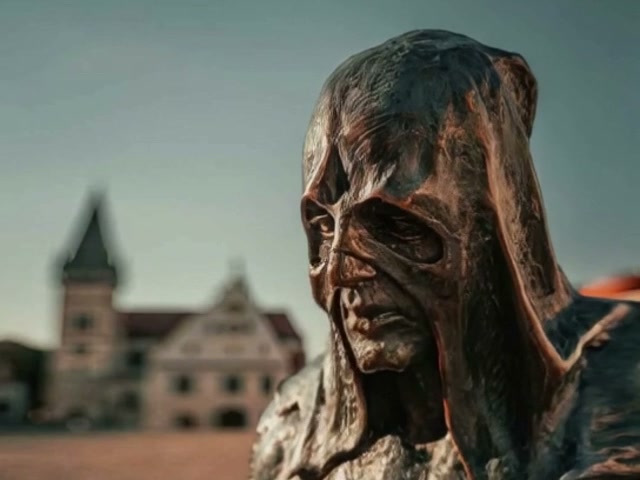 AI Melt EffectTurn the subject into flowing liquid-like material.
 AI TransformationCreate a broader person or object transformation.
 Image to VideoAnimate an image with a fully custom prompt.
 AI ASMRCreate tactile object and material motion.
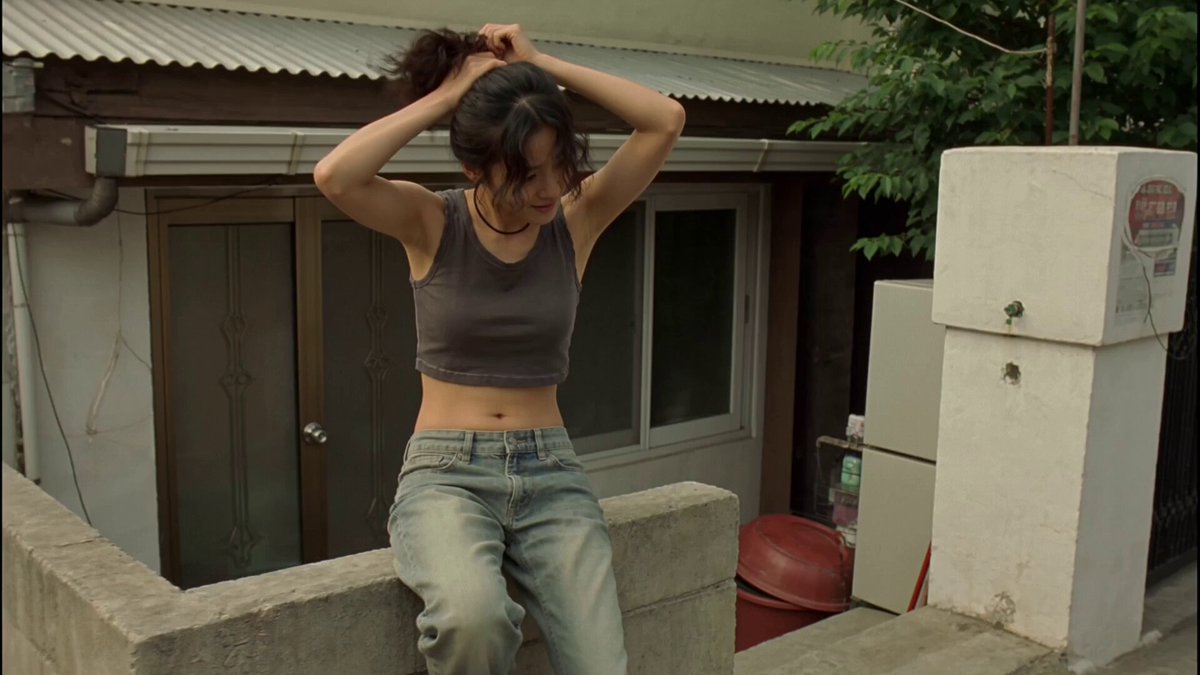 Video to VideoRestyle existing footage with playful character motion.
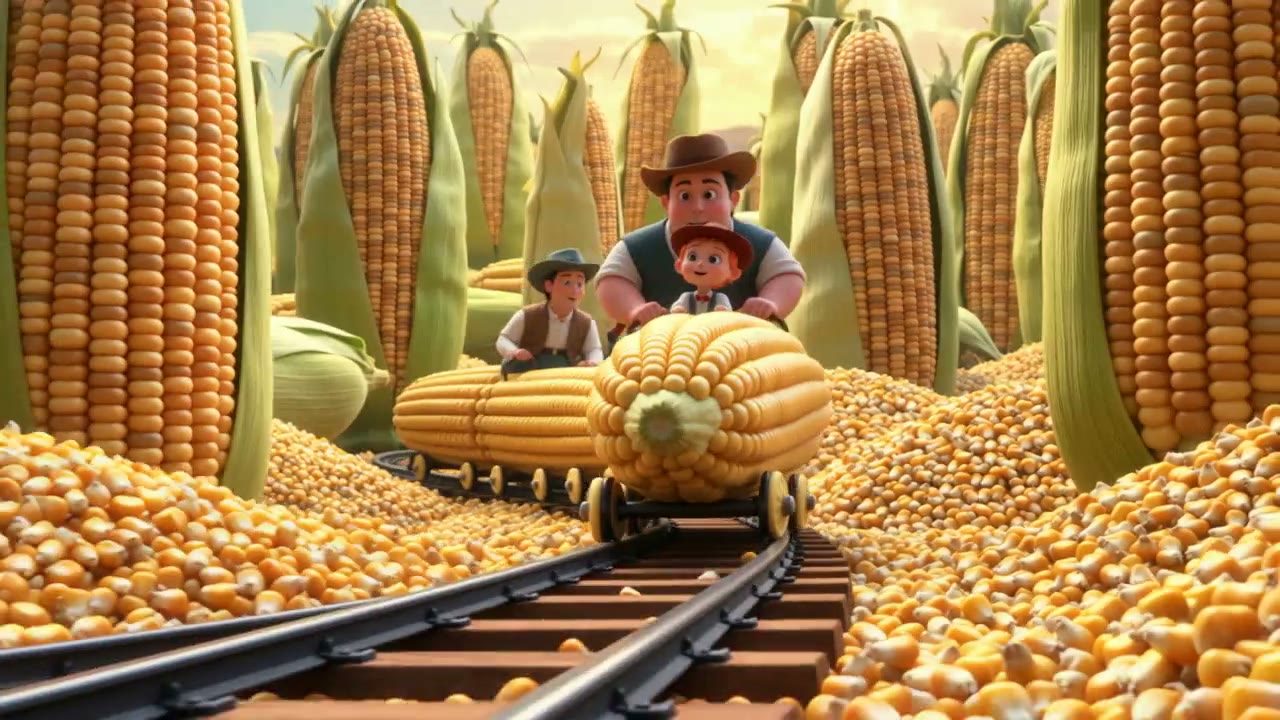 AI Animation GeneratorAnimate stylized characters with custom motion.
Add an image, choose a squish style, and edit the prompt to control the compression and rebound.
Generate video